pcf-canvas-apps
Code components for canvas apps implementation, security, and configuration Triggers on: **/*.{ts,tsx,js,json,xml,pcfproj,csproj}
Best use case
pcf-canvas-apps is best used when you need a repeatable AI agent workflow instead of a one-off prompt.
Code components for canvas apps implementation, security, and configuration Triggers on: **/*.{ts,tsx,js,json,xml,pcfproj,csproj}
Teams using pcf-canvas-apps should expect a more consistent output, faster repeated execution, less prompt rewriting.
When to use this skill
- You want a reusable workflow that can be run more than once with consistent structure.
When not to use this skill
- You only need a quick one-off answer and do not need a reusable workflow.
- You cannot install or maintain the underlying files, dependencies, or repository context.
Installation
Claude Code / Cursor / Codex
Manual Installation
- Download SKILL.md from GitHub
- Place it in
.claude/skills/pcf-canvas-apps/SKILL.mdinside your project - Restart your AI agent — it will auto-discover the skill
How pcf-canvas-apps Compares
| Feature / Agent | pcf-canvas-apps | Standard Approach |
|---|---|---|
| Platform Support | Not specified | Limited / Varies |
| Context Awareness | High | Baseline |
| Installation Complexity | Unknown | N/A |
Frequently Asked Questions
What does this skill do?
Code components for canvas apps implementation, security, and configuration Triggers on: **/*.{ts,tsx,js,json,xml,pcfproj,csproj}
Where can I find the source code?
You can find the source code on GitHub using the link provided at the top of the page.
SKILL.md Source
# Code Components for Canvas Apps Professional developers can use Power Apps component framework to create code components that can be used in their canvas apps. App makers can use Power Apps component framework to create, import, and add code components to canvas apps using [Microsoft Power Platform CLI](https://learn.microsoft.com/en-us/power-apps/developer/component-framework/get-powerapps-cli). > **Note**: Certain APIs might not be available in canvas apps. We recommend that you check each API to determine where it's available. ## Security Considerations > **Warning**: Code components contain code that may not be generated by Microsoft and can potentially access security tokens and data when rendered in Power Apps Studio. When adding code components to a canvas app, make sure that the code component solutions are from a trusted source. This vulnerability does not exist when playing the canvas app. ### Security Warning in Power Apps Studio When you open a canvas app that contains code components in Power Apps Studio, a warning message about potentially unsafe code appears. Code components in the Power Apps Studio environment have access to security tokens; hence only components from trusted sources should be opened. **Best Practices:** - Administrators and system customizers should review and validate all code components before importing them into an environment - Make components available to makers only after validation - The `Default` publisher is shown when you import code components by using an unmanaged solution or when you have used `pac pcf push` to install your code component 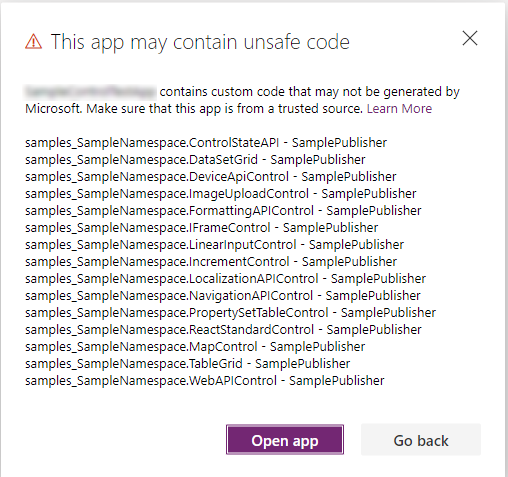 ## Prerequisites - A Power Apps license is required. More information: [Power Apps component framework licensing](https://learn.microsoft.com/en-us/power-apps/developer/component-framework/overview#licensing) - System administrator privileges are required to enable the Power Apps component framework feature in the environment ## Enable the Power Apps Component Framework Feature To add code components to an app, you need to enable the Power Apps component framework feature in each environment where you want to use them. By default, the Power Apps component feature is enabled for model-driven apps. ### Steps to Enable for Canvas Apps: 1. Sign in to [Power Apps](https://powerapps.microsoft.com/) 2. Select **Settings** , and then select **Admin Center** 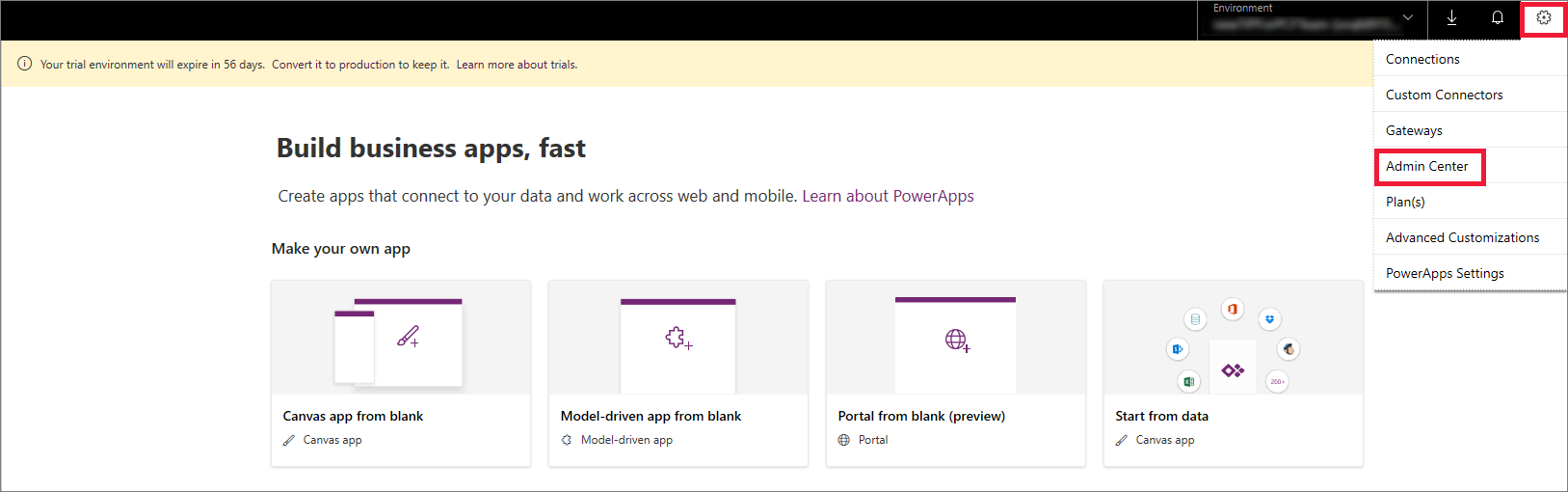 3. On the left pane, select **Environments**, select the environment where you want to enable this feature, and then select **Settings** 4. Expand **Product**, and select **Features** 5. From the list of available features, turn on **Power Apps component framework for canvas apps**, and then select **Save** 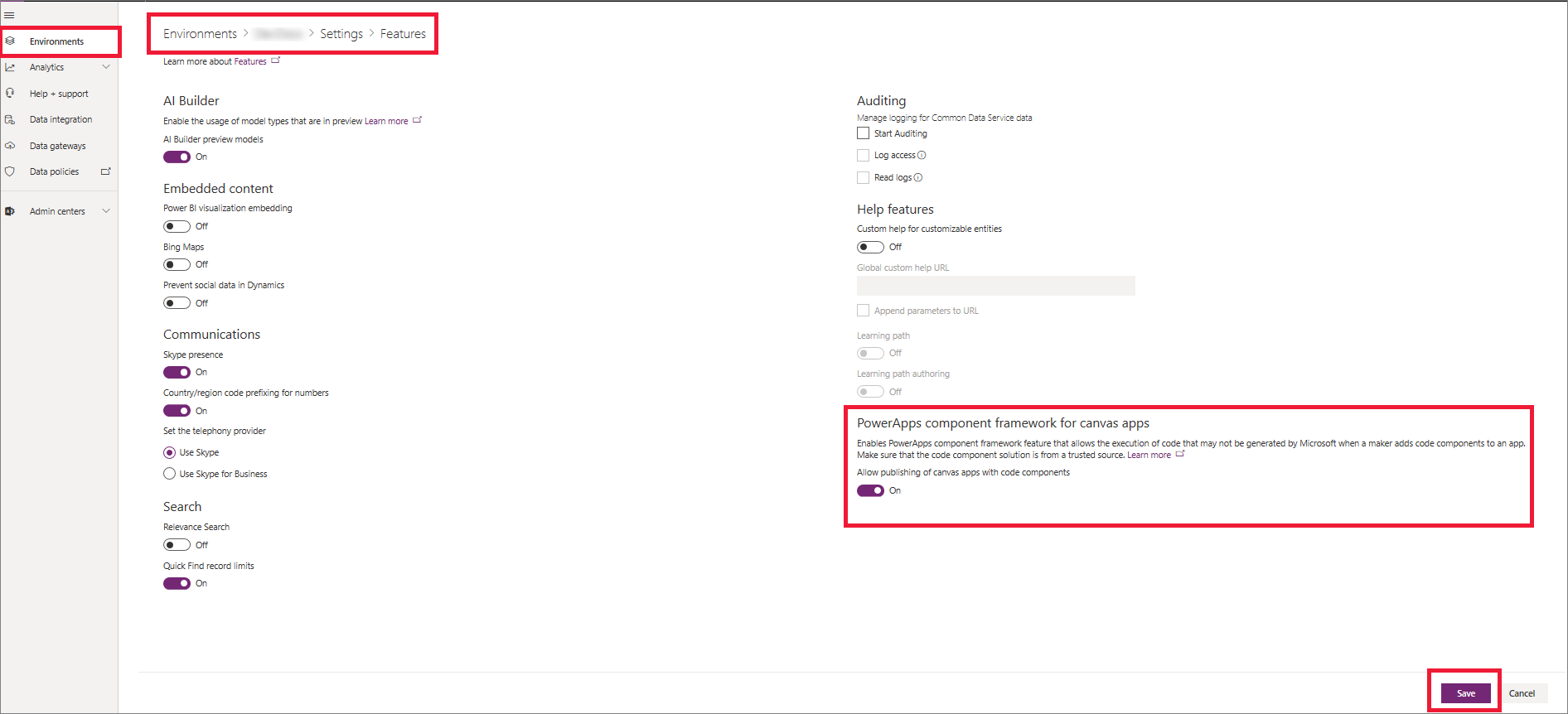 ## Implementing Code Components After you enable the Power Apps component framework feature in your environment, you can start implementing the logic for code components. For a step-by-step tutorial, go to [Create your first code component](https://learn.microsoft.com/en-us/power-apps/developer/component-framework/implementing-controls-using-typescript). **Recommendation**: Check the [limitations](https://learn.microsoft.com/en-us/power-apps/developer/component-framework/limitations) of code components in canvas apps before starting implementation. ## Add Components to a Canvas App 1. Go to Power Apps Studio 2. Create a new canvas app, or edit an existing app to which you want to add the code component > **Important**: Make sure the solution .zip file containing the code components has already been [imported](https://learn.microsoft.com/en-us/power-apps/maker/data-platform/import-update-export-solutions) into Microsoft Dataverse before you proceed to the next step. 3. On the left pane, select **Add (+)**, and then select **Get more components** 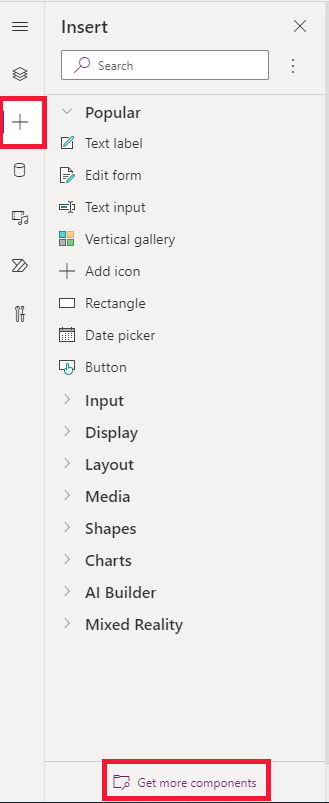 4. Select the **Code** tab, select a component from the list, and then select **Import** 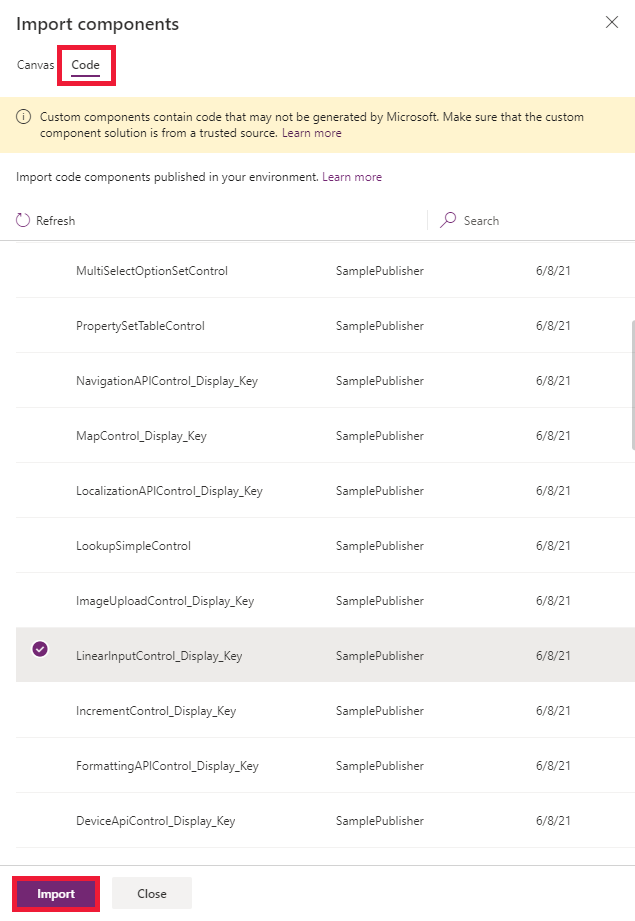 5. On the left pane, select **+**, expand **Code components**, and then select the component to add it to the app 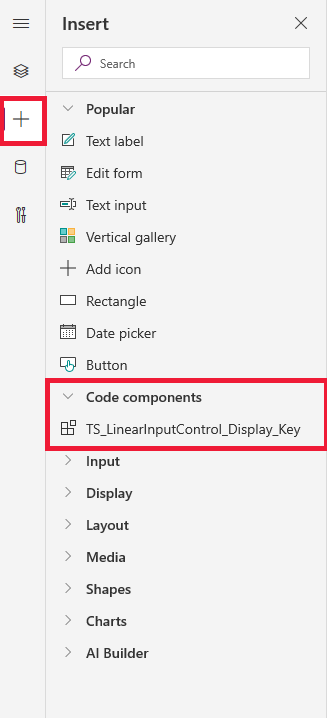 > **Note**: You can also add components by selecting **Insert > Custom > Import component**. This option will be removed in a future release, so we suggest using the flow described above. ### Component Properties On the Properties tab, you'll notice the code component properties are displayed. 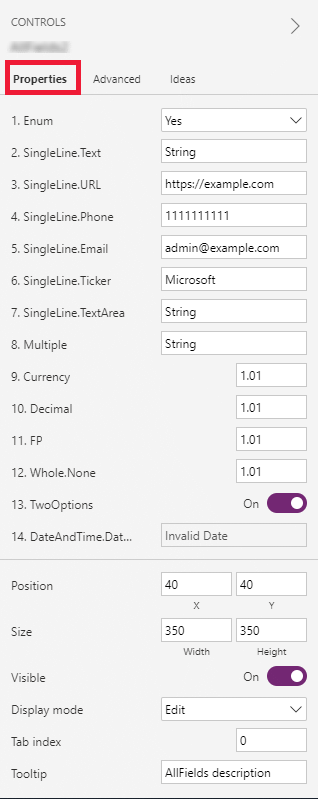 > **Note**: Existing code components can be re-imported by updating the code component's manifest version if you want the properties to be available in the default Properties tab. As before, the properties will continue to be available on the Advanced properties tab. ## Delete a Code Component from a Canvas App 1. Open the app where you've added the code component 2. On the left pane, select **Tree view**, and then select the screen where you've added the code component 3. Next to the component, select **More (...)**, and then select **Delete** 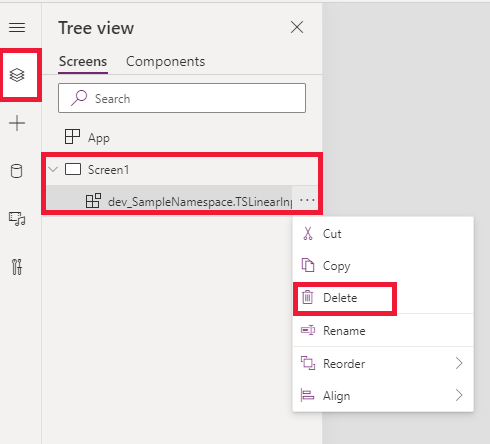 4. Save the app to see the changes ## Update Existing Code Components Whenever you update the code components and want to see the runtime changes, you need to change the `version` property in the manifest file. We recommend that you change the version of the component whenever you make changes. > **Note**: Existing code components are updated only when the app is closed or reopened in Power Apps Studio. When you reopen the app, it asks you to update the code components. Simply deleting or adding code components back into the app won't update the components. Publish all the customizations in the updated solution first, otherwise updates made to the code component won't appear. ## See Also - [Power Apps component framework overview](https://learn.microsoft.com/en-us/power-apps/developer/component-framework/overview) - [Create your first code component](https://learn.microsoft.com/en-us/power-apps/developer/component-framework/implementing-controls-using-typescript) - [Learn Power Apps component framework](https://learn.microsoft.com/en-us/training/paths/use-power-apps-component-framework)
Related Skills
testing-tauri-apps
Guides developers through testing Tauri applications including unit testing with mock runtime, mocking Tauri APIs, WebDriver end-to-end testing with Selenium and WebdriverIO, and CI integration with GitHub Actions.
shopify-apps
Expert patterns for Shopify app development including Remix/React Router apps, embedded apps with App Bridge, webhook handling, GraphQL Admin API, Polaris components, billing, and app extensions. U...
openai-apps-sdk-builder
Build OpenAI Apps SDK applications - interactive ChatGPT apps with MCP servers, React widgets, and rich UI components for conversational experiences
multi-platform-apps-multi-platform
Build and deploy the same feature consistently across web, mobile, and desktop platforms using API-first architecture and parallel implementation strategies.
multi-platform-apps-flutter-expert
Master Flutter development with Dart 3, advanced widgets, and multi-platform deployment. Handles state management, animations, testing, and performance optimization for mobile, web, desktop, and embedded platforms. Use PROACTIVELY for Flutter architecture, UI implementation, or cross-platform features. Use when: the task directly matches flutter expert responsibilities within plugin multi-platform-apps. Do not use when: a more specific framework or task-focused skill is clearly a better match.
mcpserver-migrate-mcpapps
Migrates an MCP server with interactive widgets from the OpenAI Apps SDK (window.openai, text/html+skybridge) to the MCP Apps standard (@modelcontextprotocol/ext-apps), covering server-side and client-side changes.
json-canvas
Create and edit JSON Canvas files (.canvas) with nodes, edges, groups, and connections. Use when working with .canvas files, creating visual canvases, mind maps, flowcharts, or when the user mentions Canvas files in Obsidian.
developing-frontend-apps
Frontend application development best practices. Use when building, modifying, or reviewing frontend applications, React components, UI components, client-side JavaScript/TypeScript, CSS/styling, single-page applications, or web application architecture.
connect-apps
Connect Claude to external apps like Gmail, Slack, GitHub. Use this skill when the user wants to send emails, create issues, post messages, or take actions in external services.
chatgpt-mcp-apps-kit
Guide for implementing ChatGPT Apps using OpenAI Apps SDK. Use when building MCP servers with interactive UI components that integrate with ChatGPT, including widget runtime, authentication, state management, and deployment to the ChatGPT platform.
chatgpt-apps-sdk-developer
Assists in developing ChatGPT Apps using the Apps SDK and Model Context Protocol (MCP). Invoke when the user wants to create, debug, or understand ChatGPT Apps, MCP servers, or their UI integration.
chatgpt-apps-production-checklist
Turn ChatGPT Apps implementation work into a production-ready checklist with concrete tasks, tests, widget changes, and tool-result patterns mapped by priority (P0/P1/P2). Use when designing or hardening Apps SDK products for shipping; do not use for generic web-only apps, static code review, or non-ChatGPT integration planning.